How to login for the first time and setup OTP with Google Authenticator App?
This step must be done on your computer
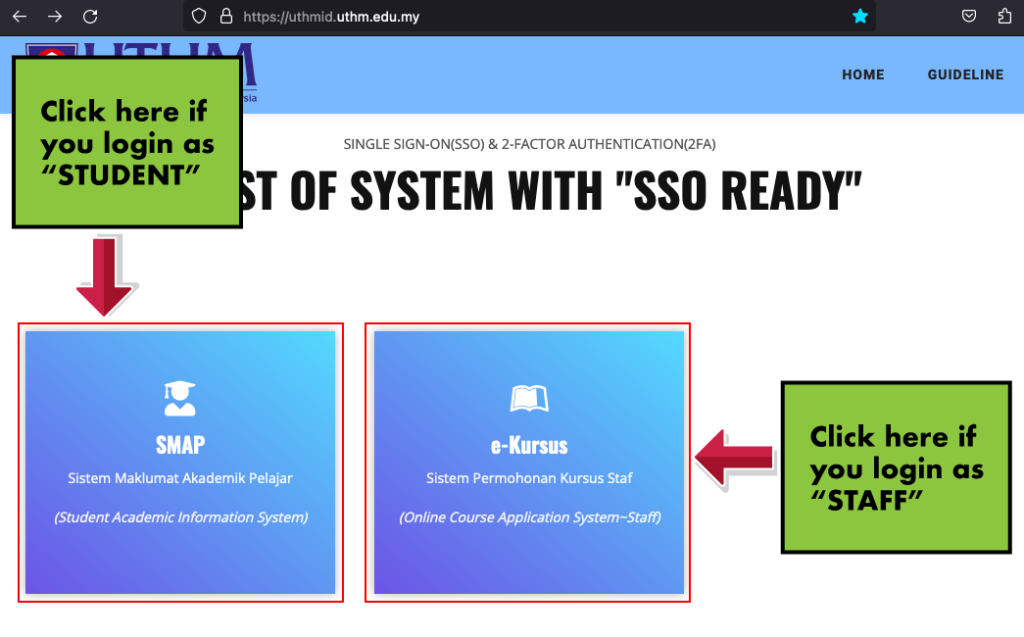
1. Click here -> https://uthmid.uthm.edu.my to view the list of all systems in UTHM with “SSO Ready” status. Click on the system you would like to use to proceed with login.
2. Download and install Google Authenticator app on your smartphone by tapping the link below. If you have installed the app, you may proceed with the next step.
*NOTE ! ~Minimum requirement : iOS 14(iPhone 6S and above) | Android 8 and above
IMPORTANT!!!
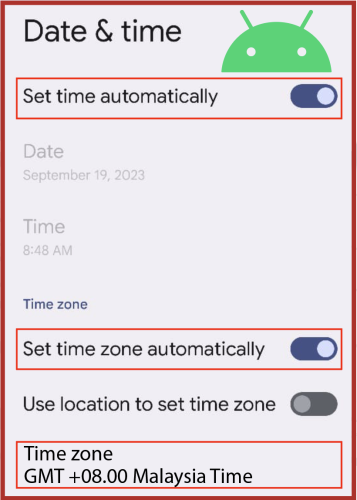
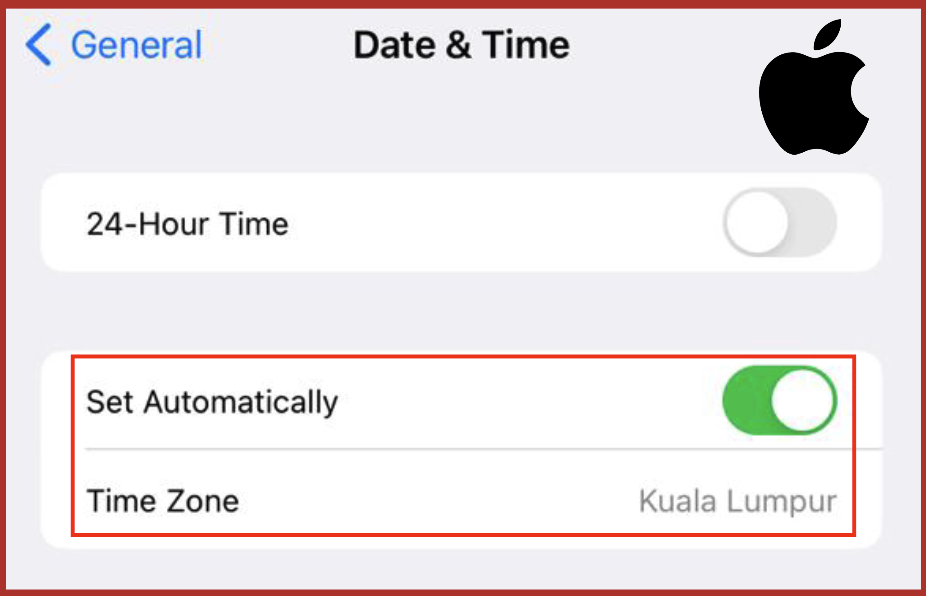
Please make sure your phone date and time are set to sync with GMT +8.00 Malaysia automatically. Do this before scanning the QR Code.
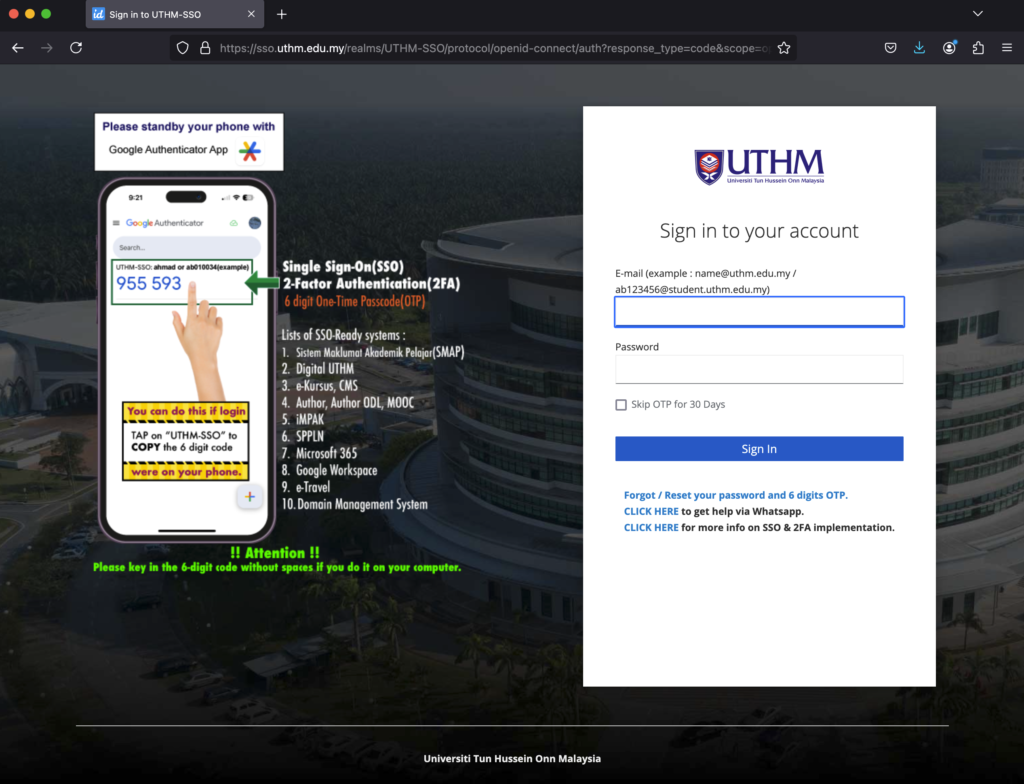
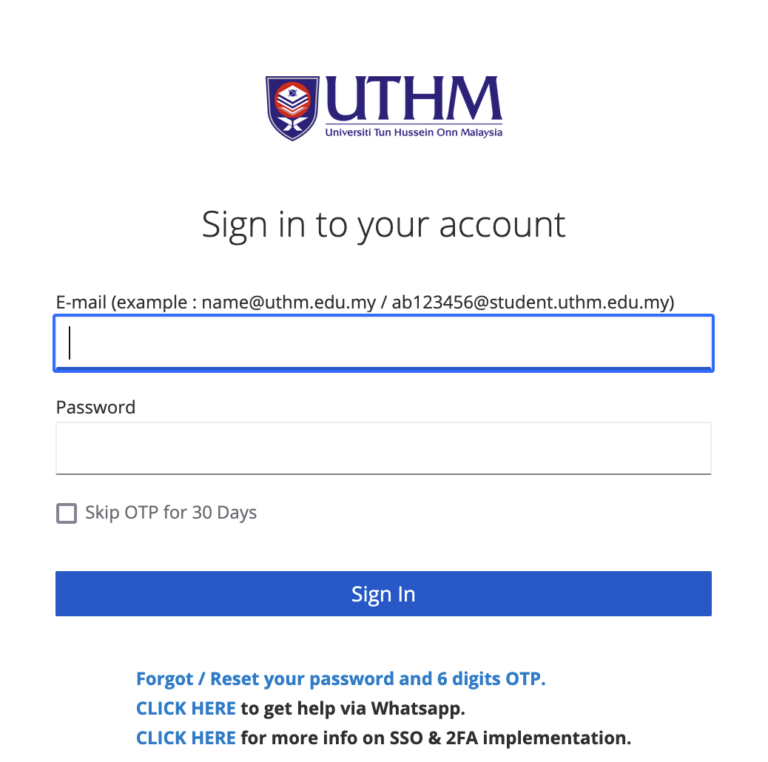
3. Enter your email and password, then click “Sign In”. If you are using your personal computer, you may choose “Skip OTP for 30 Days”.
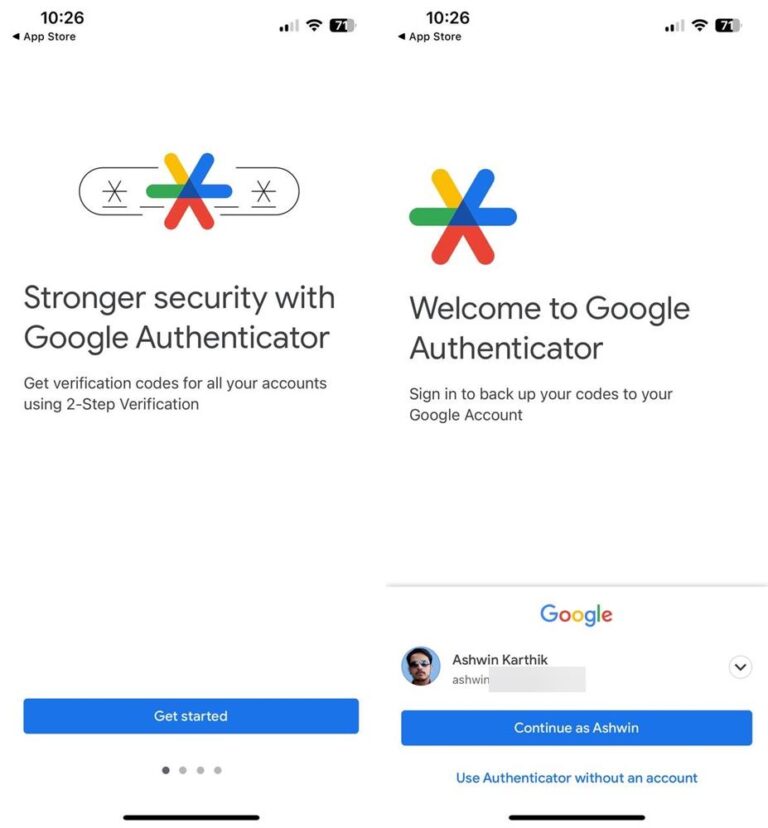
4. Once installed on your smartphone, open the Google Authenticator app. Tap “Get started” and sign in using your Gmail.com and tap “Continue as YOUR USERNAME”
This will backup your UTHM-SSO 6 digit OTP and you can use on different devices or you lost your phone or if you change a new one.
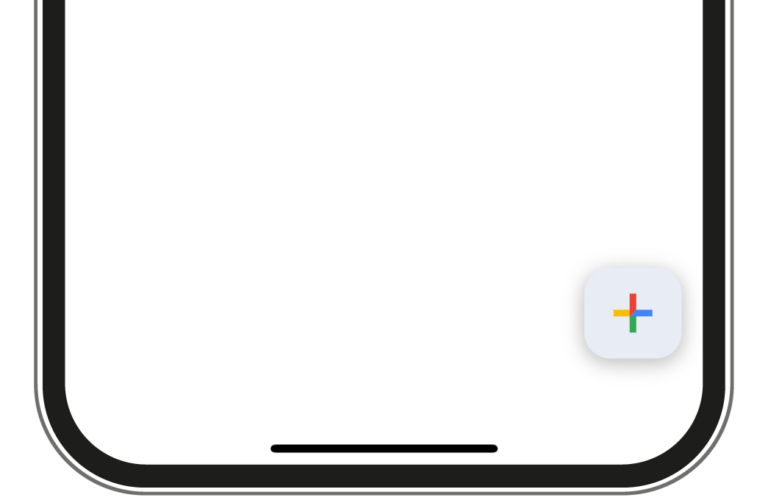
5. Tap on the “+” at the bottom right corner of your smartphone and choose “Scan a QR code”
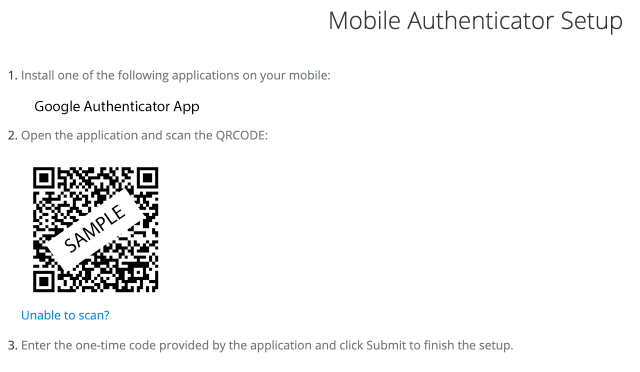
6. Then point your smartphone to the QR code generated on YOUR login screen. (left side of the screen)
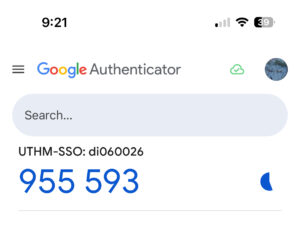
7. You will now see a new account has been added to the app. The 6 digit code will be show under “UTHM-SSO“.
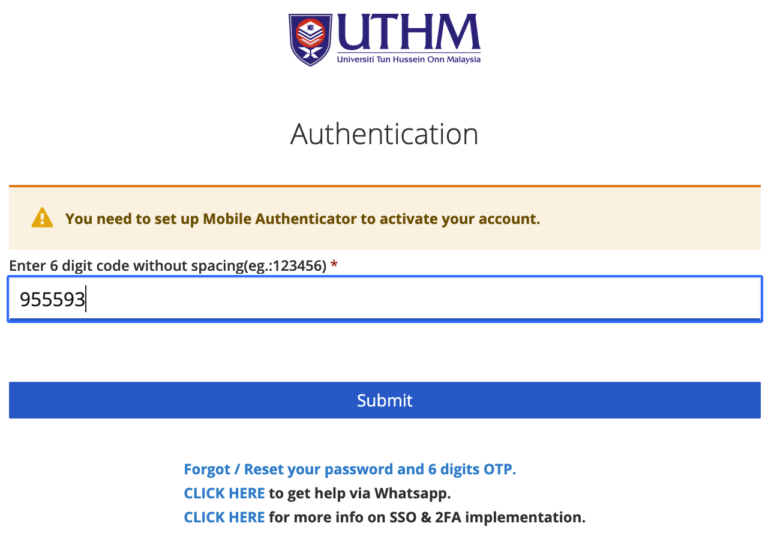
8. Enter the 6 digit code without spaces. Click on “Submit” to continue.
9. You are now successfully login to the system you choose earlier. You can also use other system or services without entering the same username and password again.
Note*
If you are unable to install Google Authenticator App in your phone, please click here.