1. Download again Google Authenticator app and sign in using your personal Gmail.com
NOTE * (if you set backup to Google cloud on your previous phone using your Gmail.com account, just skip this step and login as usual).
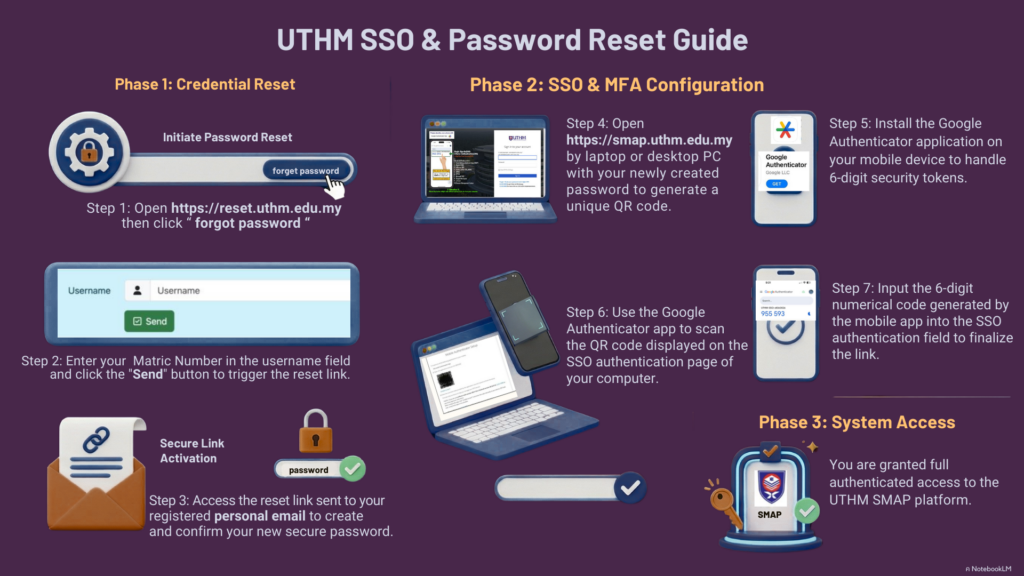
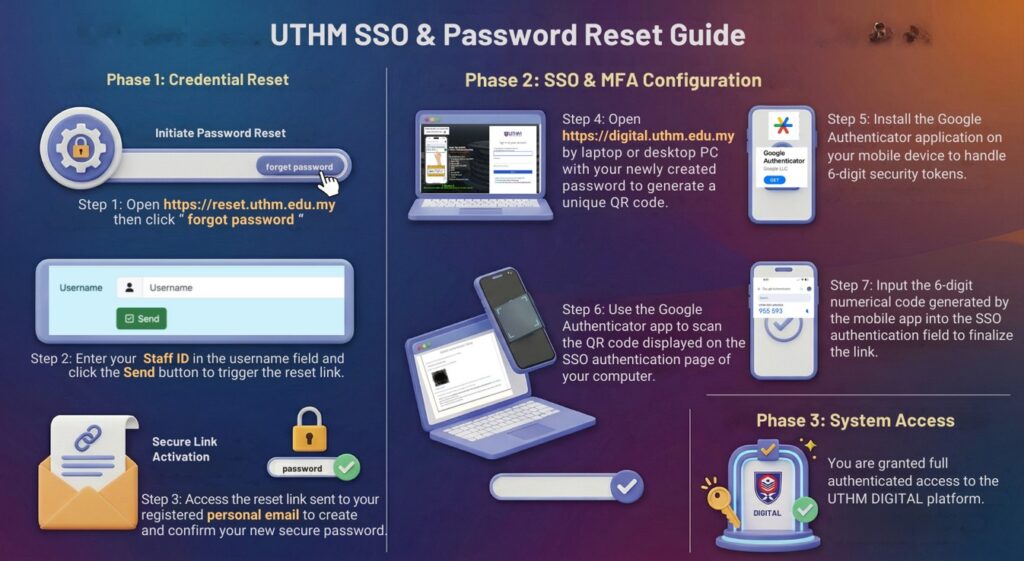
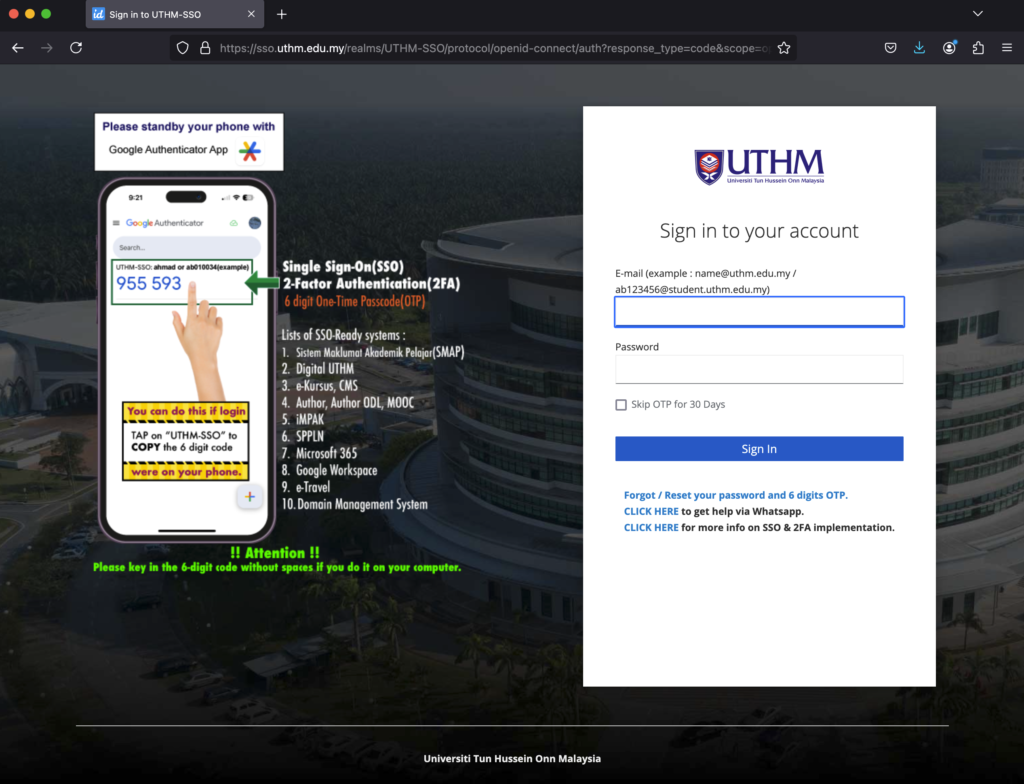
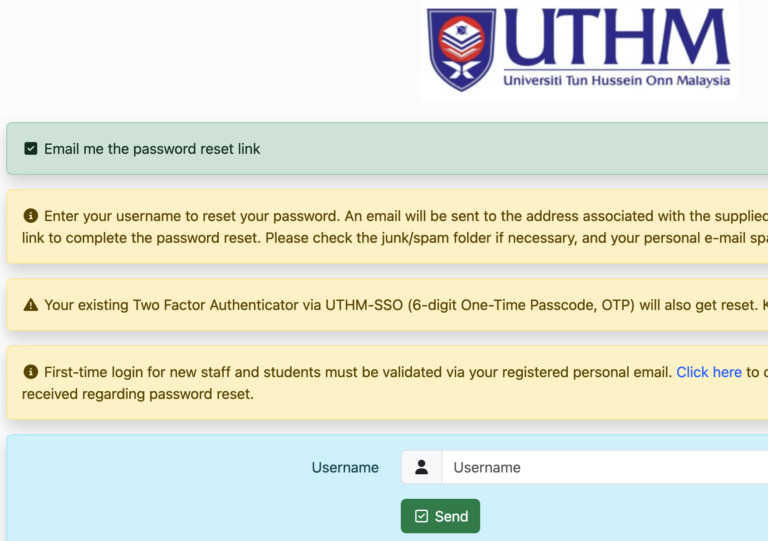
2. Open https://reset.uthm.edu.my and choose “Forgot password” or just click the “Forgot / reset your password” link at the UTHM-SSO login screen.
3. Enter your username (example for staff ~ [email protected], just enter “ahmad” in the username input box / field.) For student, just enter your matric number and click “Send”
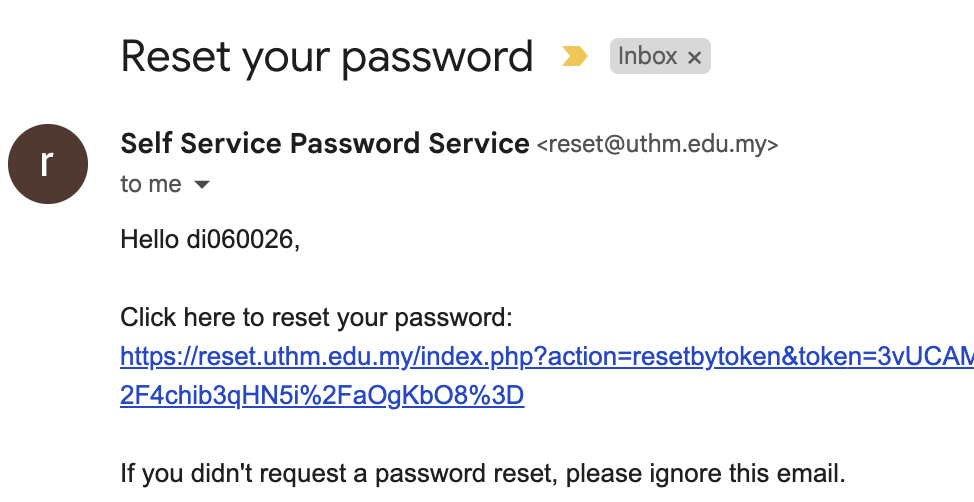
4. You will receive a reset link on your registered personal email. Click on the link and you will be redirected to change your password.
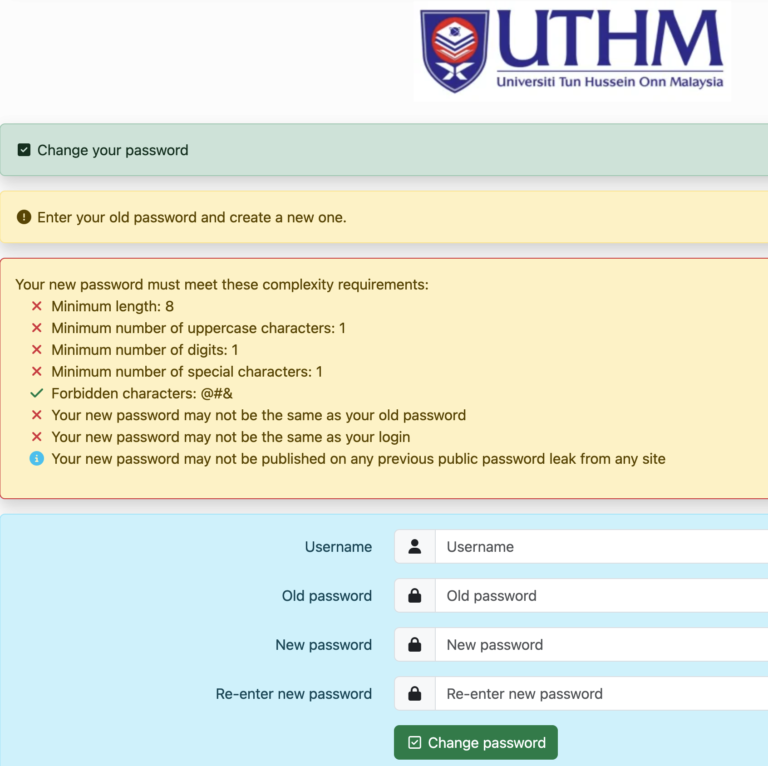
5. Proceed with changing your new password and once successful, your OTP will be reset. Login to any SSO-ready system / Google / Microsoft services and you will be redirected to UTHM-SSO login page.
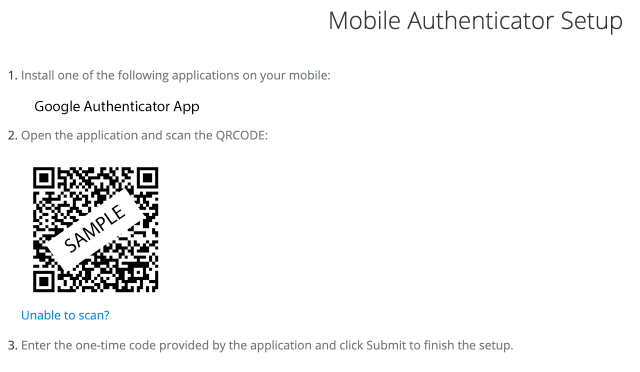
5. After successful with login, you will be redirected to QR code page. Then, point your smartphone to the QR code generated on the login screen using Google authenticator app. (QR code is on the left side of the screen)
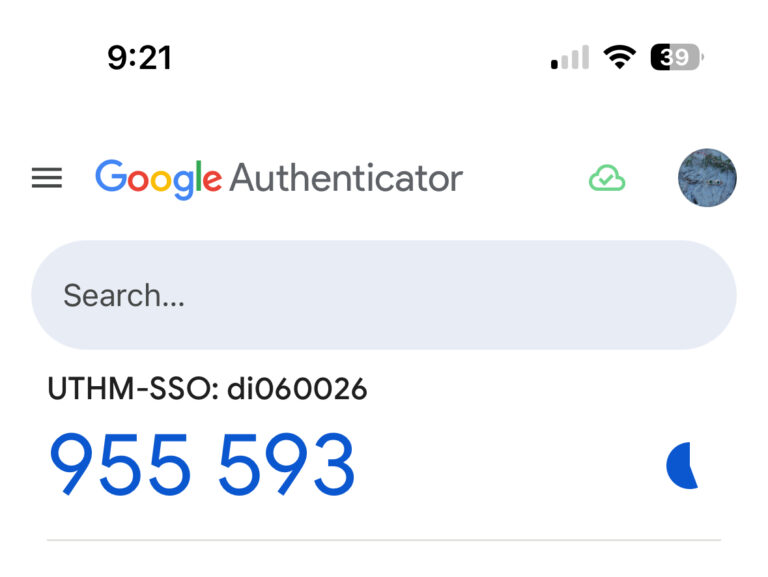
6. You will now see a new account has been added to the app. The 6 digits code will be shown under “UTHM-SSO”.
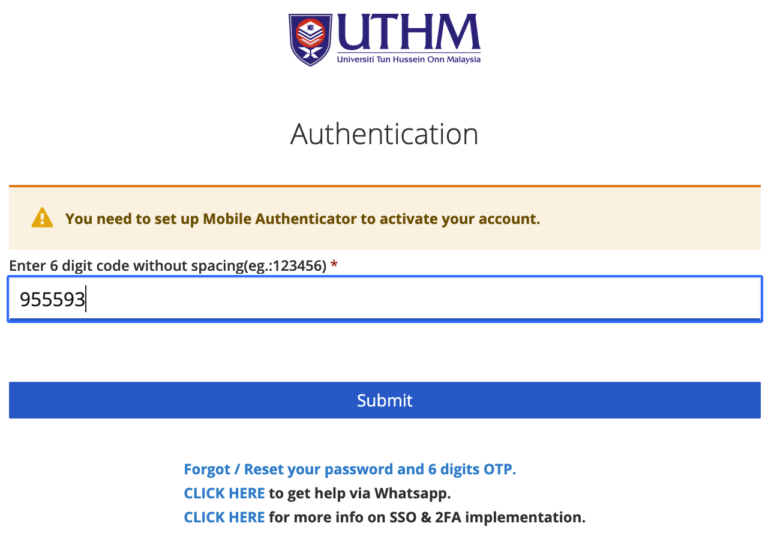
8. Enter the 6 digits code without spaces and click “Submit” to continue.
9. You are now successfully login to the system you choose earlier. You can also use other system or services without entering the same username and password again.